Screenshot Editor

Screenshot Editor

Screenshot Editor — erase or replace text in screenshots

Screenshot Editor is a free online screenshot text editor. Upload a screenshot, auto-detect text, then erase sensitive info or replace it with new wording. Everything runs in your browser — nothing is uploaded. No sign-up. Completely free.

Click to choose an image

Prefer your photo library · clear screenshots work best

How it works

How Screenshot Editor works in 3 steps

  1. 01

    Upload a screenshot to Screenshot Editor

    Open Screenshot Editor, click upload, or pick an image from your gallery. PNG and JPG are supported. The file opens in your browser and is never sent to a server.

  2. 02

    Let Screenshot Editor detect text

    Built-in OCR in Screenshot Editor finds Chinese and English text and highlights each line. Recognition runs locally and usually takes only a few seconds.

  3. 03

    Erase or replace with Screenshot Editor

    Tap a text region, choose Erase to remove it and fill the background, or Replace to type new text. Then download your result from Screenshot Editor.

Screenshot Editor workflow demo showing text erase and replace
About the tool

What is Screenshot Editor?

Screenshot Editor is a free browser-based screenshot text editor for people who need to erase or replace wording without installing desktop software. Whether you are redacting a chat, fixing a UI capture, or cleaning a product shot, Screenshot Editor keeps the workflow short: upload, detect, edit, and download.

A privacy-first Screenshot Editor

Most online image editors upload your file to a remote server. Screenshot Editor is different: OCR and editing run locally in the browser, so sensitive screenshots never leave your device. That makes Screenshot Editor a practical choice for personal chats, work dashboards, invoices, and other private captures.

Who Screenshot Editor is for

Screenshot Editor helps marketers, support teams, creators, students, and anyone who shares screenshots online. If you need a fast screenshot text eraser, a lightweight OCR screenshot editor, or a simple way to replace text in a screenshot, Screenshot Editor is built for that job.

What you can do in Screenshot Editor

With Screenshot Editor you can remove text from a screenshot, replace incorrect wording, hide phone numbers or account IDs, and export a clean PNG. No account is required, exports have no watermark, and you can start editing as soon as the page loads.

Why us

Why choose Screenshot Editor

01

100% local processing in Screenshot Editor

In Screenshot Editor, images stay in your browser memory only and are cleared when you refresh. No upload, no storage, no third-party access — ideal for sensitive screenshots.

02

Free Screenshot Editor, no account

Use every Screenshot Editor feature in the browser. No registration, no subscription, no usage caps, and no watermarks.

03

Chinese & English OCR in Screenshot Editor

Screenshot Editor includes Simplified Chinese and English models to locate text in chats, web pages, and scanned documents.

04

Smart background fill

After Screenshot Editor erases text, nearby pixels fill the gap. Solid and simple gradient backgrounds look natural without manual brushwork.

05

Screenshot Editor on any device

Use Screenshot Editor on desktop or mobile browsers. On phones you can also take a photo and upload it instantly.

06

Instant PNG download

Export from Screenshot Editor at the original resolution as PNG — no compression and no watermark.

Use cases

What people use Screenshot Editor for

Scenario 01

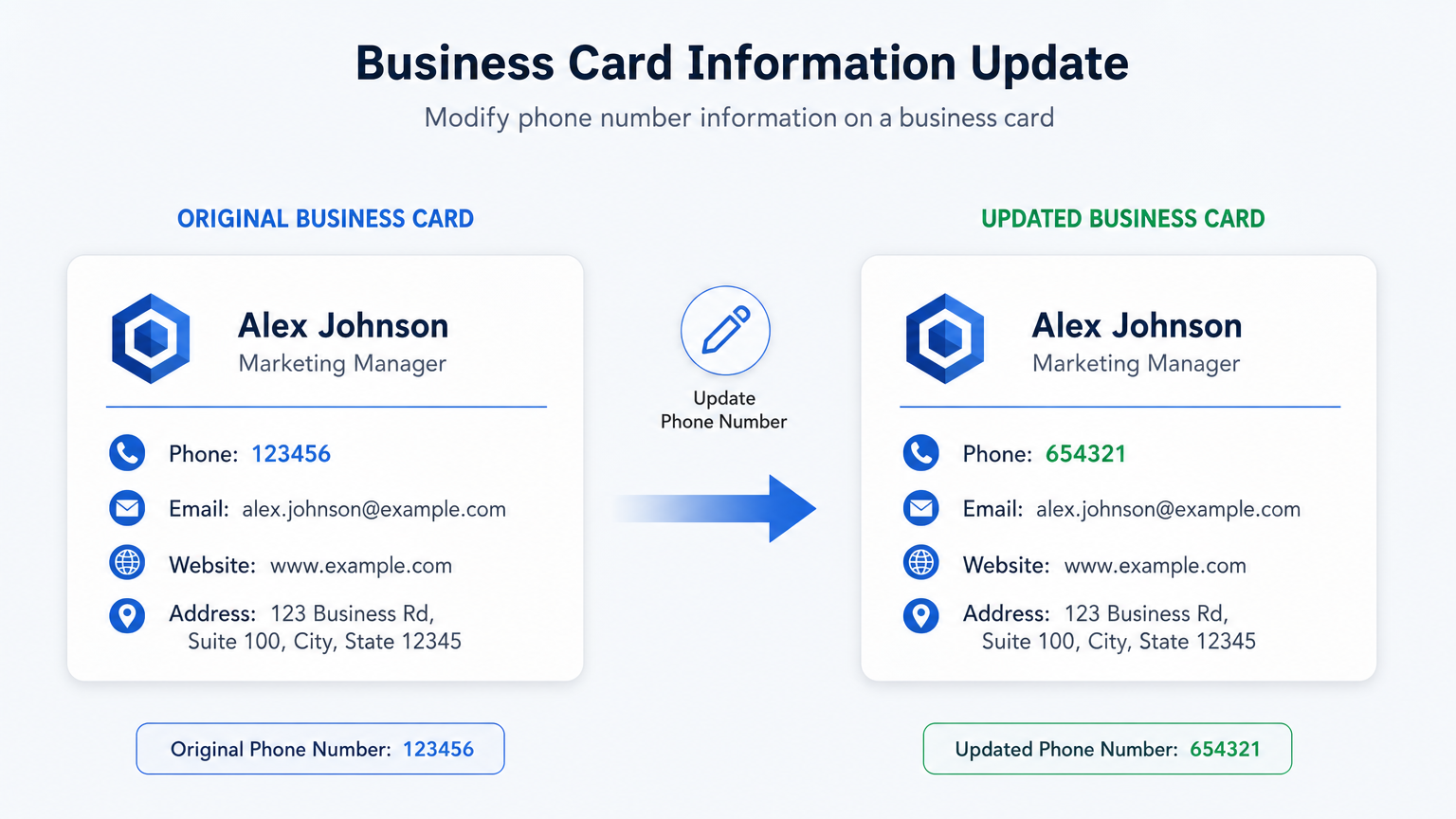
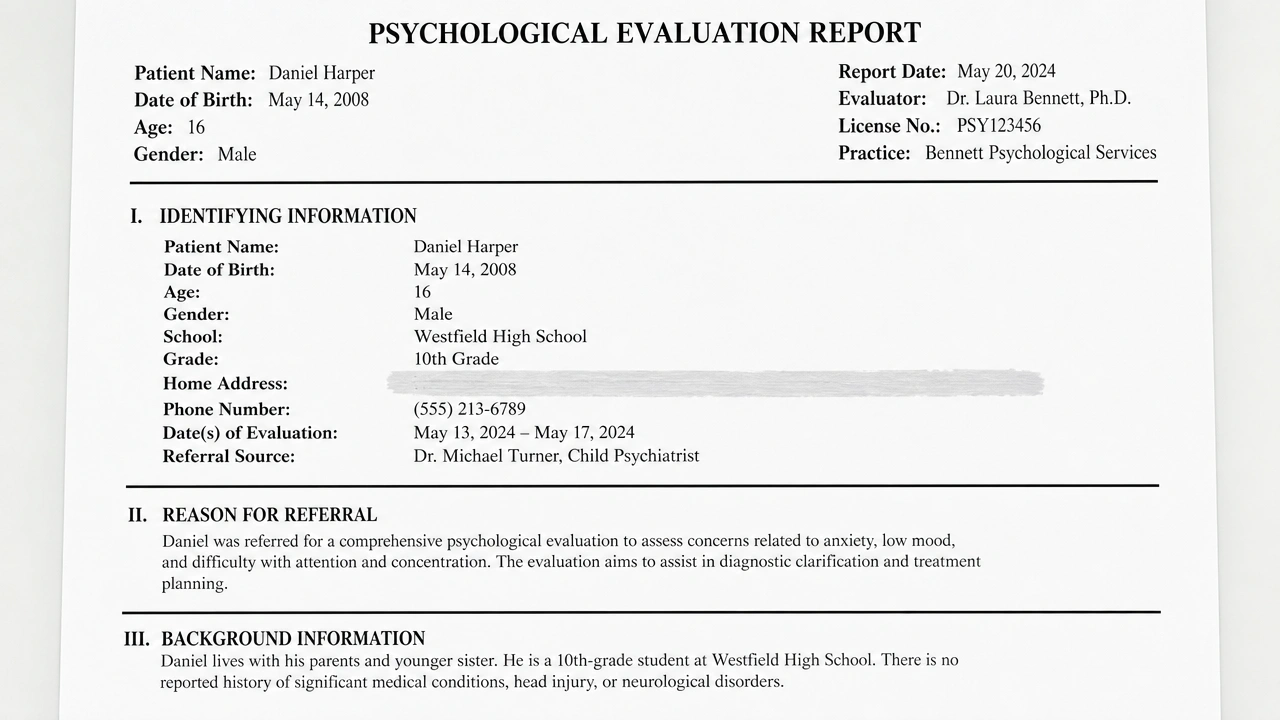
Hide sensitive info with Screenshot Editor

Before sharing chats, orders, or dashboards, use Screenshot Editor to quickly erase phone numbers, addresses, amounts, or account IDs.

Screenshot Editor use case: Hide sensitive info with Screenshot Editor
Scenario 02

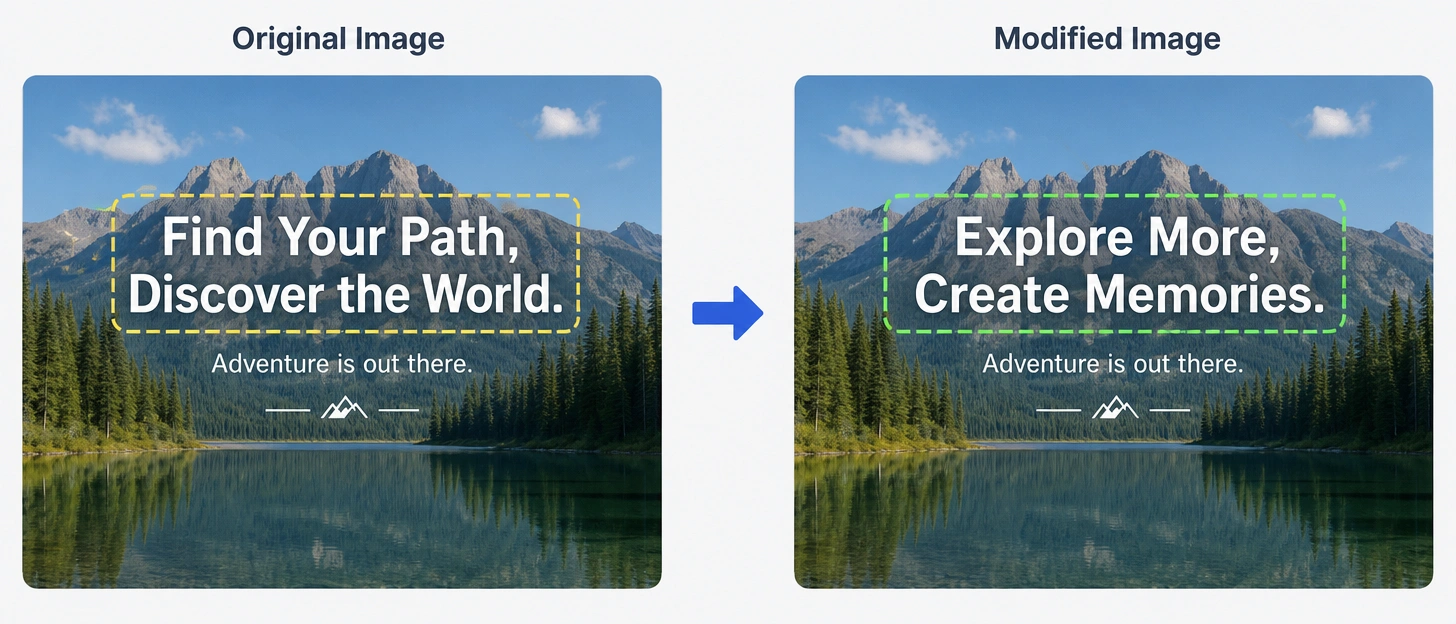
Fix typos in screenshots

Wrong wording in a slide or tutorial capture? Screenshot Editor lets you replace the text on the original image instead of re-shooting.

Screenshot Editor use case: Fix typos in screenshots
Scenario 03

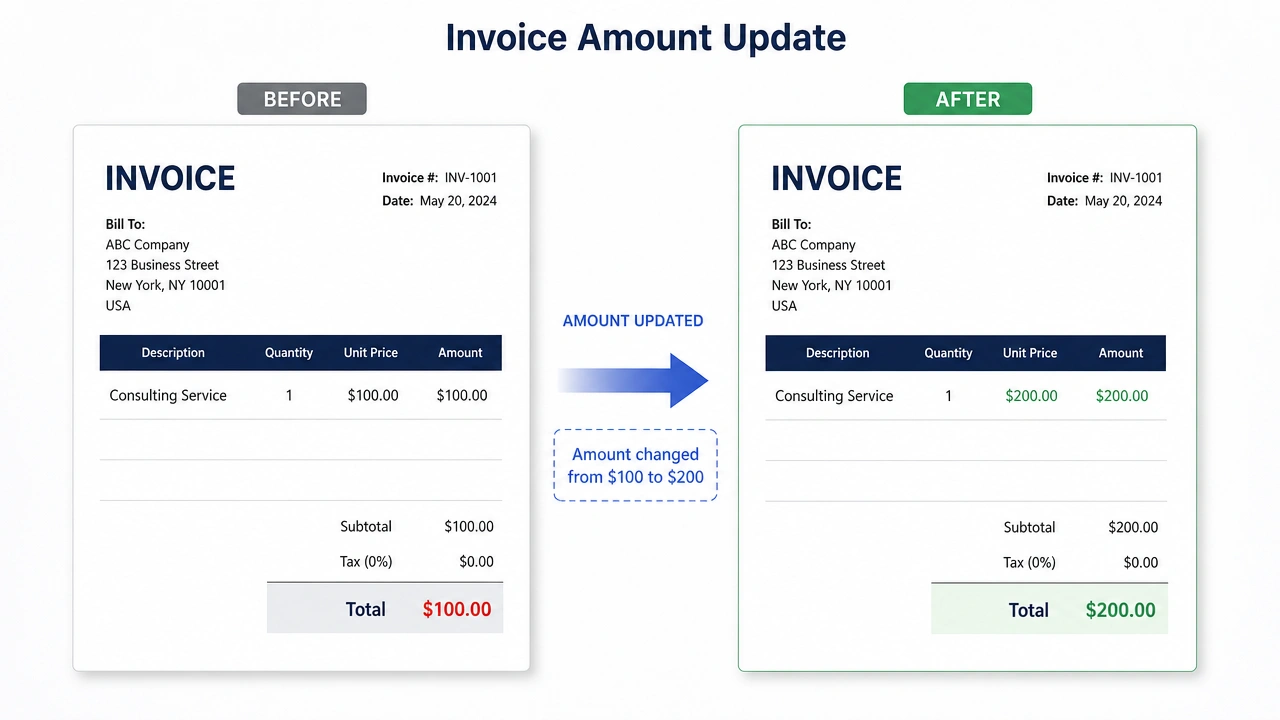
Clean product screenshots

Remove test data, placeholder copy, or stray labels with Screenshot Editor so UI shots look polished for your site or marketing assets.

Screenshot Editor use case: Clean product screenshots
Privacy

Screenshot Editor privacy by design

Unlike most online image tools, Screenshot Editor does not process images on a cloud server. OCR (powered by open-source Tesseract) and text erasure run via WebAssembly and Canvas in your browser. From file pick to download, your screenshot stays on your device. Screenshot Editor cannot see or store any of your images — the safest way to handle chats, finance details, IDs, and other sensitive captures.

FAQ

Screenshot Editor FAQ

01What is Screenshot Editor?+

Screenshot Editor is a free online screenshot text editor. It detects text in your screenshot with local OCR, then lets you erase or replace that text in the browser without uploading the image to a server.

02Are my images uploaded when I use Screenshot Editor?+

No. Screenshot Editor runs OCR and erasure locally in your browser with WebAssembly. Image data never leaves your device and is cleared when you close or refresh the page.

03Is Screenshot Editor free?+

Yes. Screenshot Editor is fully free: no account, no usage limits, and no watermarks on exports. The site is supported by ads.

04Which languages can Screenshot Editor OCR detect?+

Screenshot Editor currently includes Simplified Chinese and English. Clear, high-contrast printed text works best.

05Can Screenshot Editor remove sensitive information from screenshots?+

Yes. Screenshot Editor is commonly used to erase phone numbers, addresses, amounts, account IDs, and other private details before you share a screenshot.

06Can I replace text in a screenshot with Screenshot Editor?+

Yes. Select a detected text region in Screenshot Editor, enter new wording, and apply the replacement. Then download the updated PNG.

07Why wasn’t some text detected in Screenshot Editor?+

Handwriting, stylized fonts, or tiny/blurry text may fail. Use a sharp, full-resolution screenshot; enlarge small text before uploading to Screenshot Editor if needed.

08The fill looks unnatural after erase — what can I do?+

Screenshot Editor’s fill works best on solid or simple gradients. On photos or busy textures, erase smaller regions in multiple passes.

09Which image formats does Screenshot Editor support?+

Screenshot Editor supports common browser formats including PNG, JPG/JPEG, WebP, and GIF (first frame). Exports are PNG.

10Do I need to install software to use Screenshot Editor?+

No. Screenshot Editor works in a modern web browser on desktop and mobile. Open the site, upload a screenshot, and start editing.

Ready to edit

Try Screenshot Editor now

Upload a screenshot to Screenshot Editor and erase or replace text in your browser — free, private, no account.

Start editing with Screenshot Editor