
One creative, many markets
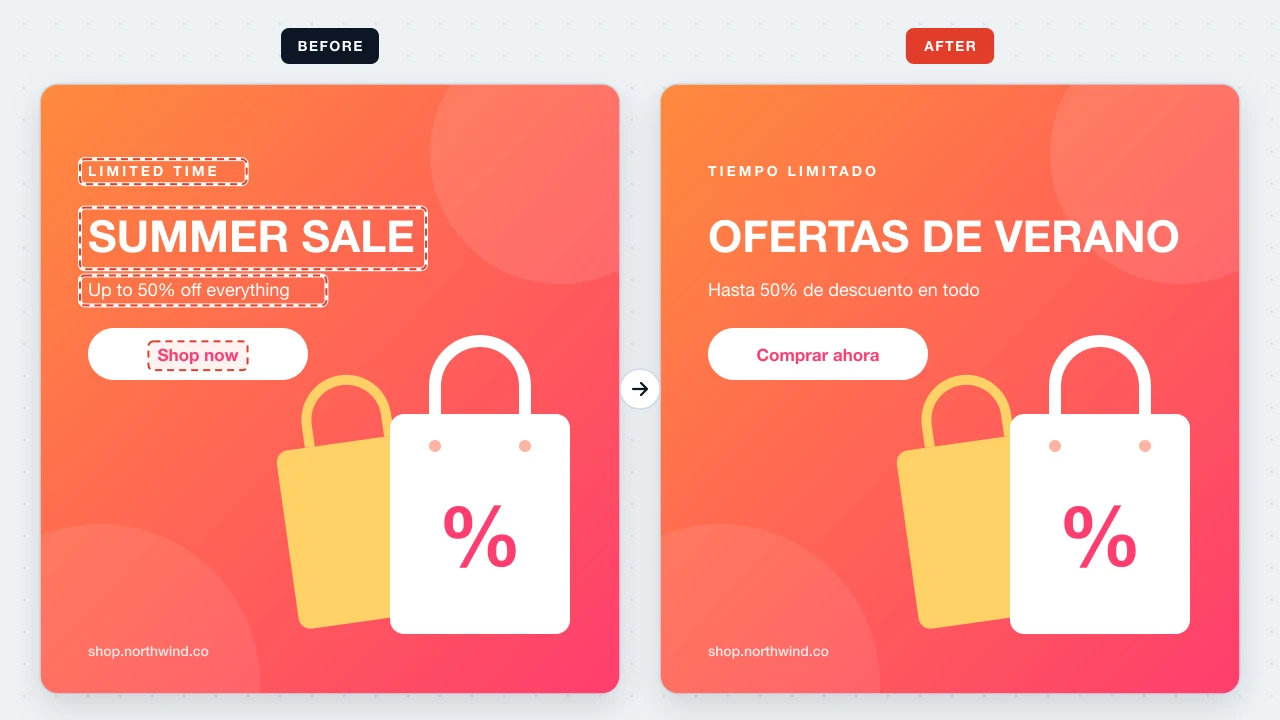
Keep a single banner design and replace its English copy with Spanish, German, or Japanese. Tagline, headline, subline, and button are each replaced and styled on their own.
Image text replacer
Replace text in image banners, product cards, and video thumbnails with new copy — a translation, a new season, a new offer. Set font, size, weight, and color so the replacement looks like it was there from the start — processed locally, never uploaded.
Pick the banner or graphic to rewrite
Banners, product cards, thumbnails — PNG or JPG
Choose the language of the original text (not the new copy)
A web banner, a product card, a YouTube thumbnail, or an ad creative exported as PNG or JPG.
Tap the headline, price, or button label OCR detected, then type the replacement — another language, another season, another price.
Use Text Style to set font, size, weight, color, and alignment. Apply, compare, and export once it matches the layout.

Replace Text In Image swaps the copy in a finished graphic for new copy you control. The original letters are removed and the background repaired first, then the new line is rendered with the font, weight, and color you choose — so a headline can change length, language, or color without leftovers.
Keep a single banner design and replace its English copy with Spanish, German, or Japanese. Tagline, headline, subline, and button are each replaced and styled on their own.
The replacement doesn't have to copy the old look. Turn a white headline yellow, drop from 800 to 600 weight, or center a line that used to sit on the left.
Translations are rarely the same length as the original. Drag the corners of the text region to give the new line more room, then lower the size until it fits.
System, Sans, Serif, Mono, and Rounded cover most banner, product, and thumbnail styles.
Match the brand color exactly, or use a new color to make the replaced line stand out.
Match thin captions and chunky display headlines alike.
Align the new copy inside the original box so buttons and centered titles stay balanced.
Drag the box corners when the replacement is longer than the text it replaces.
Undo a replacement, try another size or color, and keep whichever fits best.
Replace “SUMMER SALE”, “Up to 50% off everything”, and “Shop now” with Spanish copy and run the same banner in a new market.
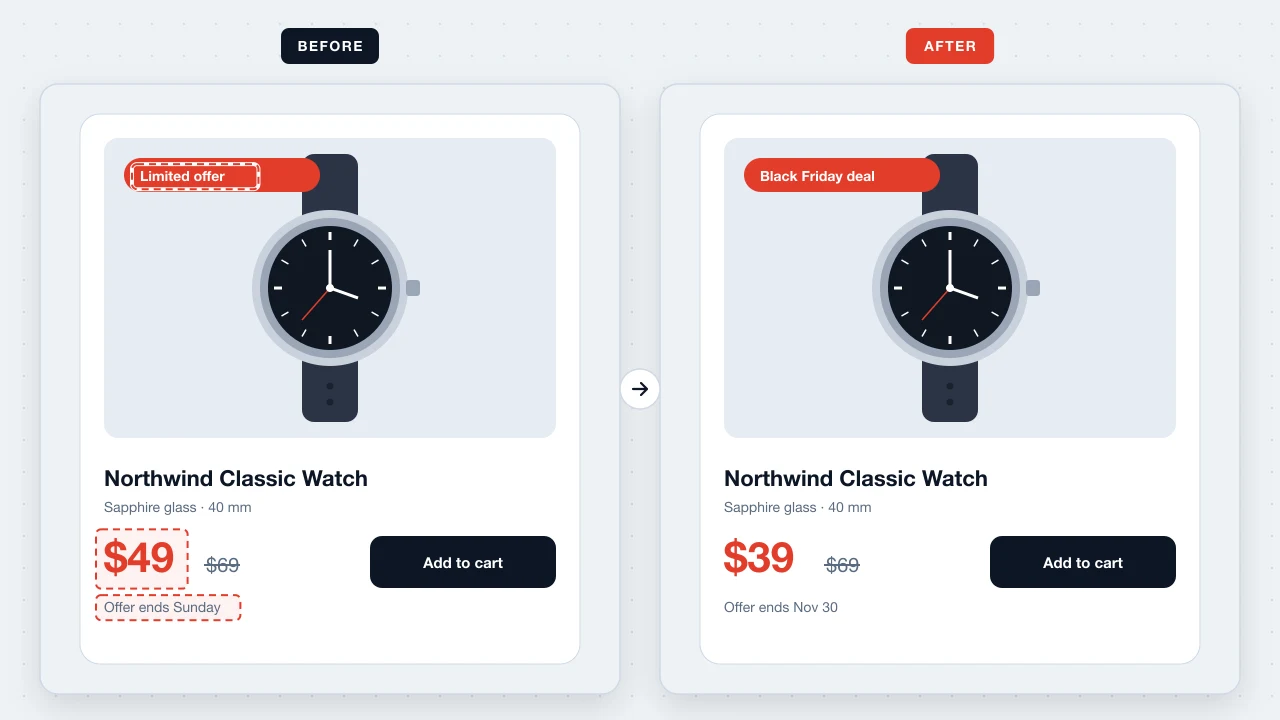
Replace “$49” with “$39” and “Limited offer” with “Black Friday deal” on a product card, then switch back when the sale ends.
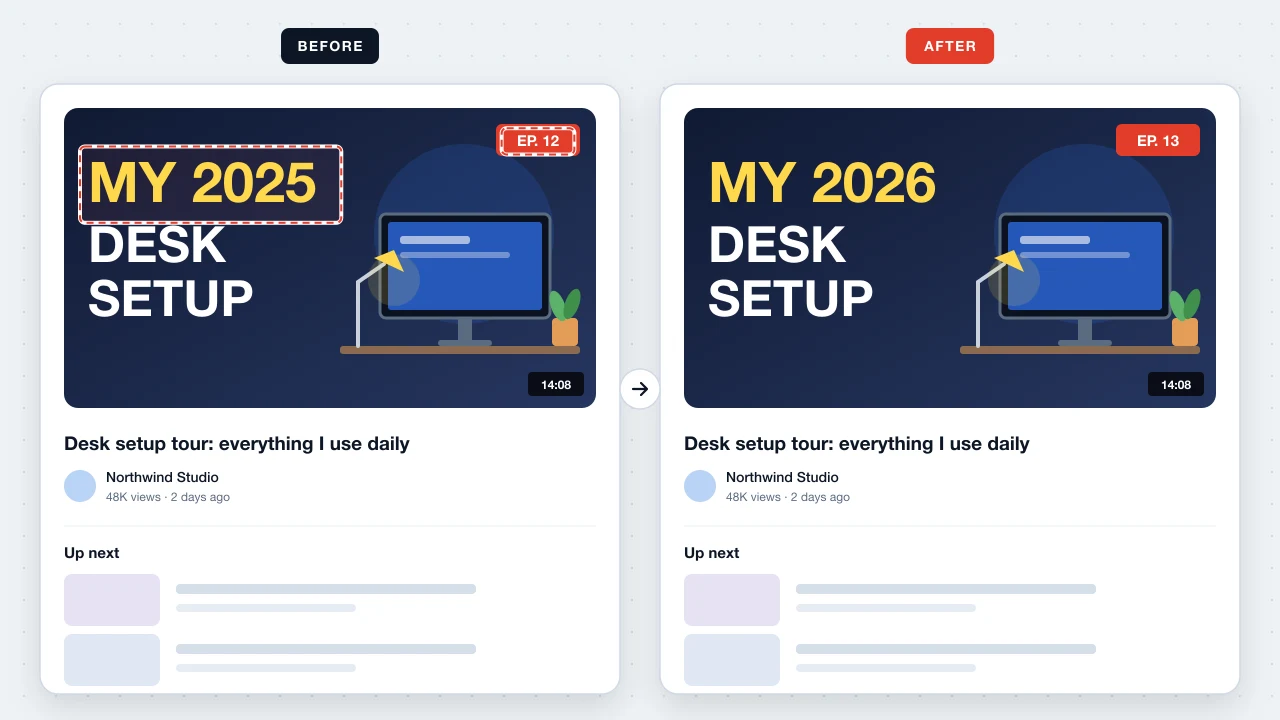
Replace “MY 2025” with “MY 2026” and bump the episode number, leaving the rest of the thumbnail design untouched.
Banners and price cards often contain offers that aren't public yet. Replace Text In Image never transmits them: OCR, background repair, and text rendering run in the browser tab you're looking at, and nothing is kept after you leave.
Upload the graphic, tap the line you want to swap, type the new copy, adjust Text Style, and apply. Export the PNG when you're happy with it.
Yes — replace each line with its translation. Set the OCR language to the original language (for example English) so the old text is detected correctly.
Start from the estimated size and color, then try Sans or Serif and adjust the weight. Brand typefaces can't be loaded, so aim for the closest match.
Drag the corners of the text region to widen it, or reduce the font size until the copy fits.
Yes. Pick any color in Text Style — it doesn't need to match the old text.
No. Replace text in as many images as you like, free and without a watermark.
Translate it, rebrand it, or update the offer — then export a polished PNG straight from your browser.
Replace image text