
Change words without rebuilding the screen
Re-creating a screen just to fix one label wastes time. Change the text in the screenshot itself — the original wording is cleared and the new text is drawn in its place.
Change text in screenshot
Change text in screenshot captures without design software. Tap any word detected by local OCR, type the new wording, and download — all inside your browser. Free, no sign-up, no watermark.
Upload a screenshotPaste your screenshot
Open Photos and pick it from your Screenshots album.Just took a screenshot? Press ⌘V to load it instantly, or drop a PNG / JPG file here.
Default English — switch if your screenshot uses another language
Upload a PNG or JPG. The file is read locally by your browser — it is never sent anywhere.
OCR highlights the text automatically. Tap the word; its current wording is filled into the input so you can edit it directly.
Font size and color are estimated from the original. Apply, check the result, and download the updated screenshot.
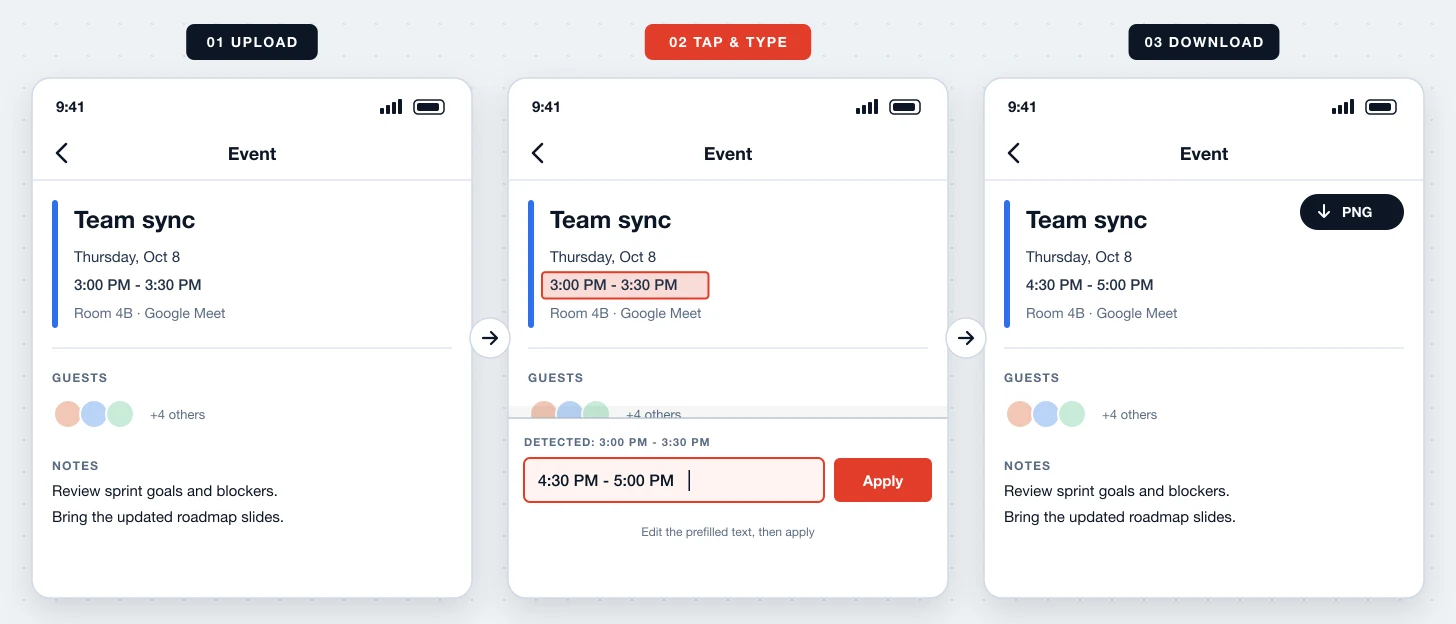
Change Text In Screenshot is a free online tool for updating wording inside an existing screen capture. It is the quickest route from “that word is wrong” to a corrected image: tap, type, apply.
Re-creating a screen just to fix one label wastes time. Change the text in the screenshot itself — the original wording is cleared and the new text is drawn in its place.
The editor estimates font size and color from the detected text, so most changes blend in on the first try. You can still adjust font, weight, and alignment if needed.
Change text in screenshot images to correct, update, or anonymize your own content. Do not use it to fabricate evidence, receipts, or messages intended to mislead others.
Selecting a word drops its recognized text into the input, so small corrections take one keystroke.
Size and color are sampled from the original wording to keep the change consistent with the screenshot.
On mobile the selected word is zoomed in and the input stays above the keyboard, so you can see what you change.
Your screenshot is processed in browser memory and cleared when you leave — nothing is uploaded.
Change English, Chinese, Japanese, Korean, and several European languages by picking the matching OCR language.
No account and no usage cap. Exports are clean PNGs at original resolution.
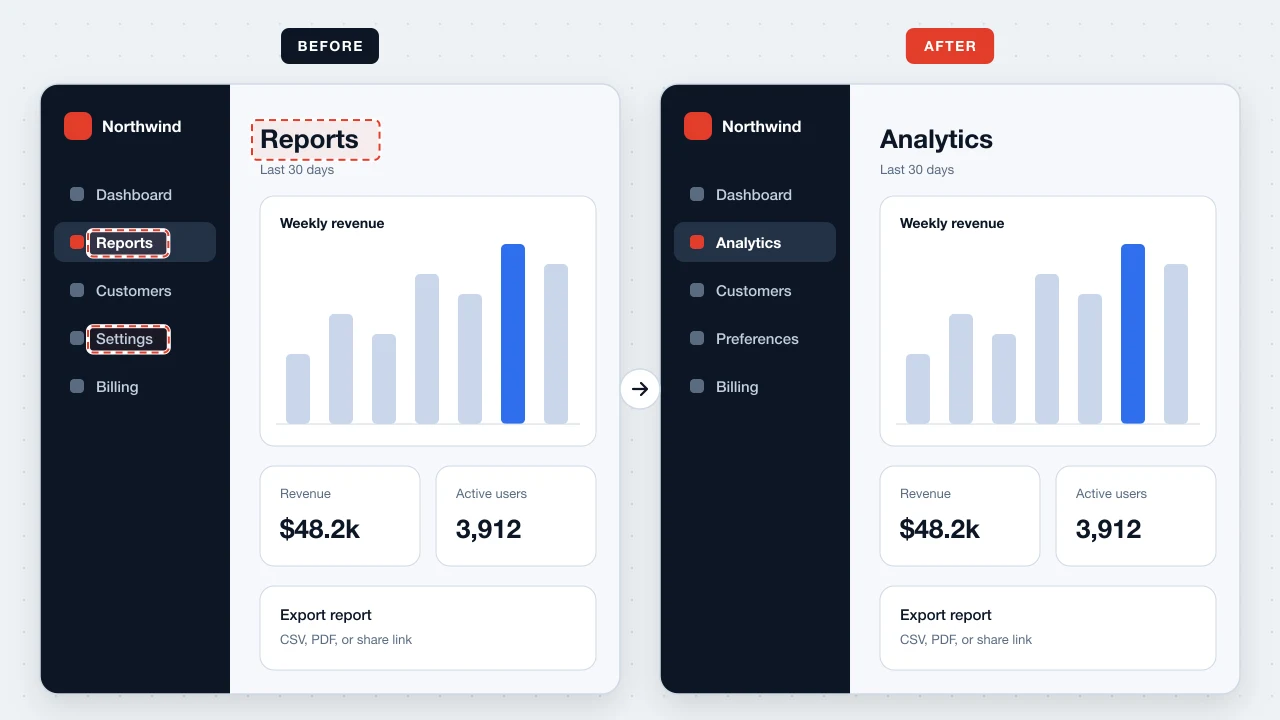
A button was renamed or a menu moved? Change the text in the screenshot so docs stay accurate.
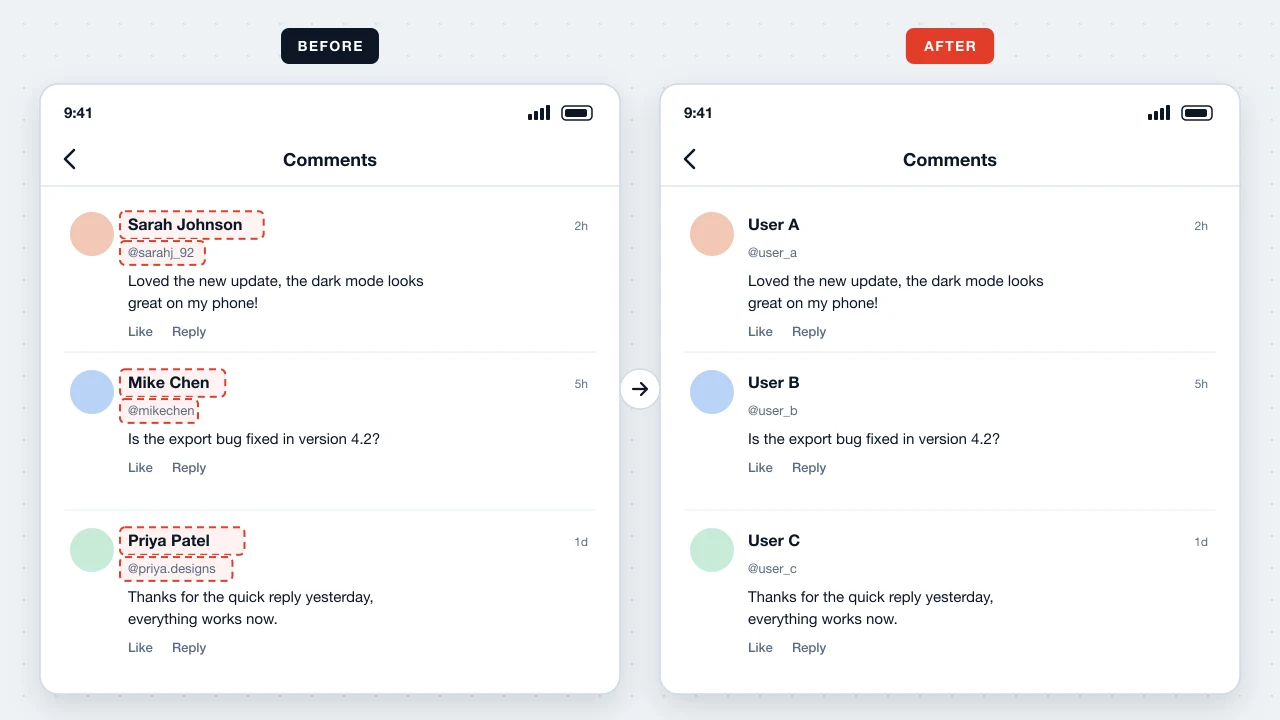
Swap real names, usernames, or company names for placeholders before sharing a capture.
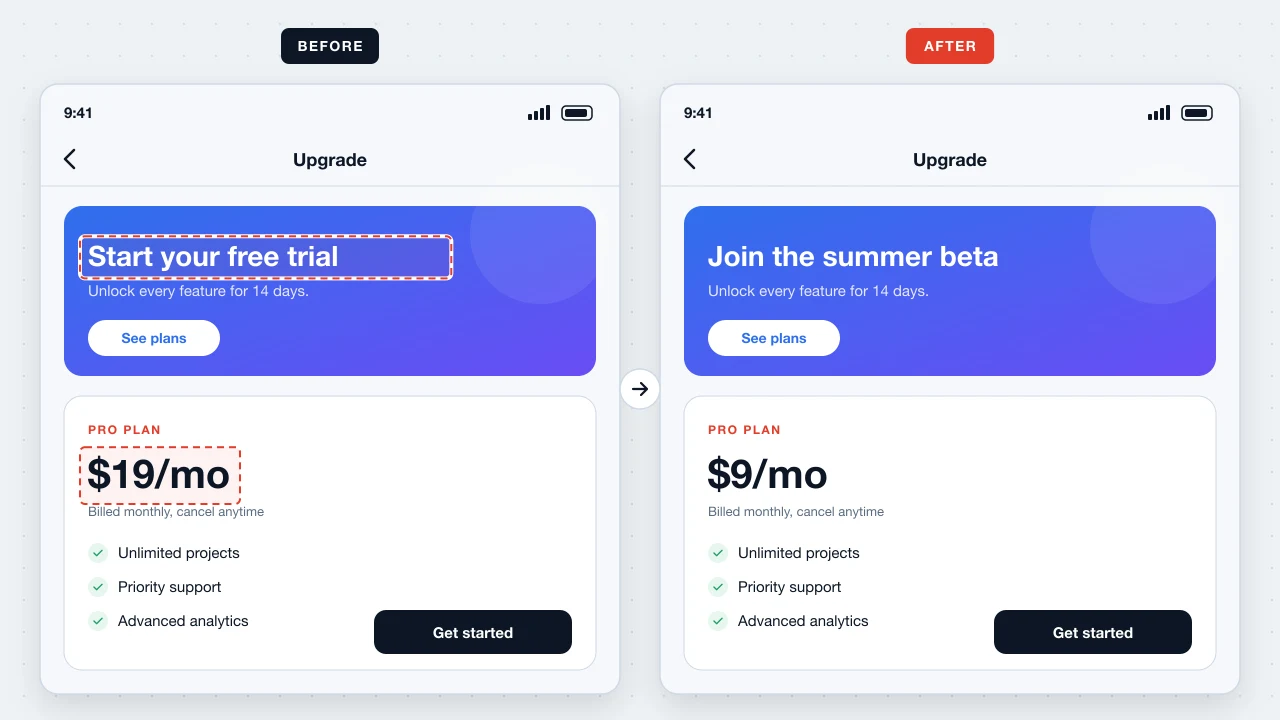
Change sample copy in UI screenshots to match a campaign, a language, or a customer demo.
Change Text In Screenshot uses the same local engine as Screenshot Editor. OCR and text rendering happen on your device, so we never receive, see, or store your images.
Upload the screenshot, tap the word after OCR finishes, edit the prefilled text, and apply. Then download the PNG.
Size and color are estimated automatically, which works well for most UI text. You can tweak font, size, weight, color, and alignment for a closer match.
Yes. No account, no usage limits, and no watermark on downloads.
No. All processing happens in your browser and nothing is sent to a server.
Yes. Upload from Photos; the selected word zooms in and the input stays above the keyboard while you type.
Please don't. The tool is meant for correcting, updating, and anonymizing your own content. Creating misleading screenshots may violate laws and our Terms of Use.
No. It runs in modern desktop and mobile browsers.
Tap a word, type the new text, and download — free and private.
Start changing screenshot text