Erase text from screenshot

Erase text from screenshot — three ways to wipe it clean

Erase text from screenshot images with smart fill, sample color, or brush repair. Local OCR finds the words for you — nothing is uploaded. Free, no sign-up, no watermark.

Upload a screenshot

Open Photos and pick it from your Screenshots album.

Default English — switch if your screenshot uses another language

Take a screenshotiPhoneSideVolume UpAndroidPowerVolume Down
How it works

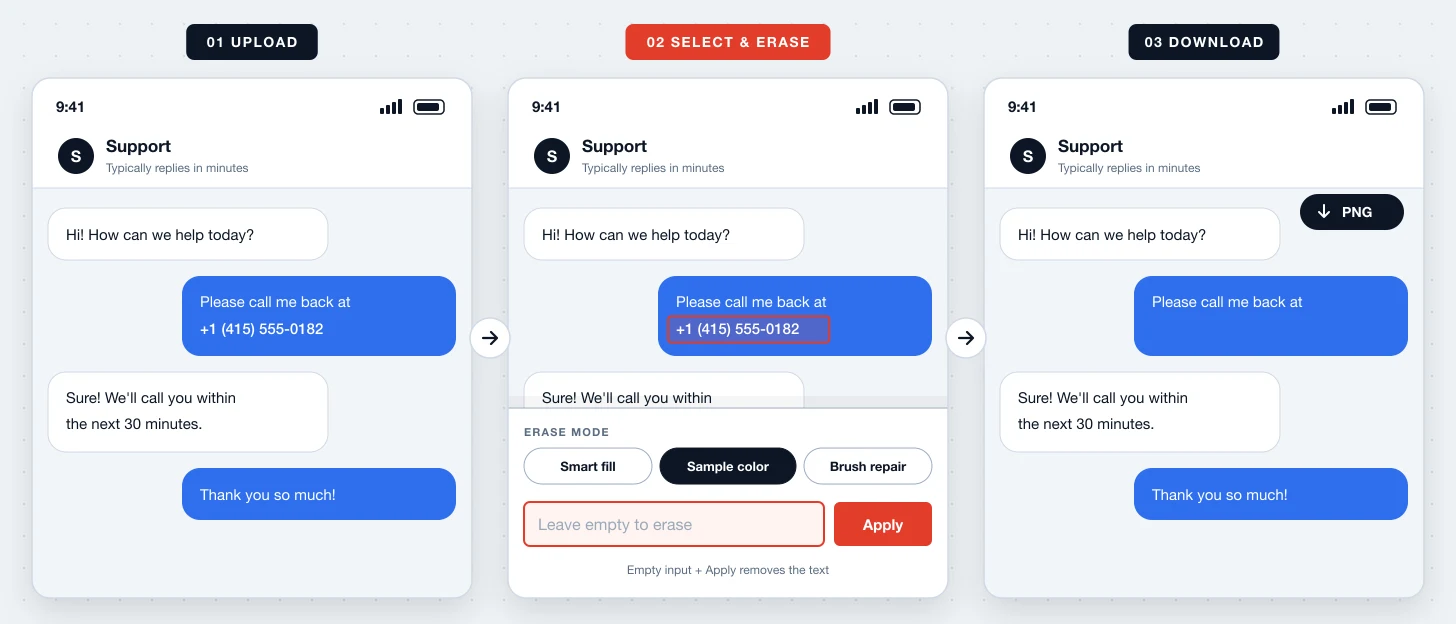
How to erase text from a screenshot

  1. 01

    Upload the screenshot

    Pick a PNG or JPG. It stays in your browser and is never sent to a server.

  2. 02

    Select the text and pick an erase mode

    Tap or drag over words, then choose Smart fill, Sample color, or Brush repair in Text Style.

  3. 03

    Erase and download

    Clear the input and apply. Undo if needed, then download the clean PNG.

Erase text from screenshot demo: select words, choose erase mode, apply
About the tool

What is Erase Text From Screenshot?

Erase Text From Screenshot is a free online eraser for words in screen captures. Instead of blurring or covering text with a black bar, it removes the letters and rebuilds the background so the screenshot looks untouched.

Three erase modes for different backgrounds

Smart fill reconstructs the area from surrounding pixels and works best on gradients. Sample color paints the area with the nearby solid color — ideal for flat UI. Brush repair lets you paint over exactly what should disappear.
Better than blur or black boxes

Blurred text can sometimes be recovered and black bars draw attention. Erasing removes the text completely and keeps the screenshot clean and professional.

Erase many words at once

Drag across a line or paragraph to select several words, then erase them in one step. Each erase can be undone.

Why us

Why erase text from screenshot here

01

Smart fill

Rebuilds the background from surrounding pixels — great for soft gradients.

02

Sample color

Fills with the surrounding solid color for crisp, flat UI backgrounds.

03

Brush repair

Paint over leftover pixels or irregular areas by hand for precise cleanup.

04

Multi-word selection

Drag to select a whole line or block of text and erase it in one go.

05

100% local processing

Erasing happens in your browser; the screenshot never leaves your device.

06

Free PNG export

Download at original resolution with no watermark and no account.

Use cases

When to erase text from a screenshot

Scenario 01

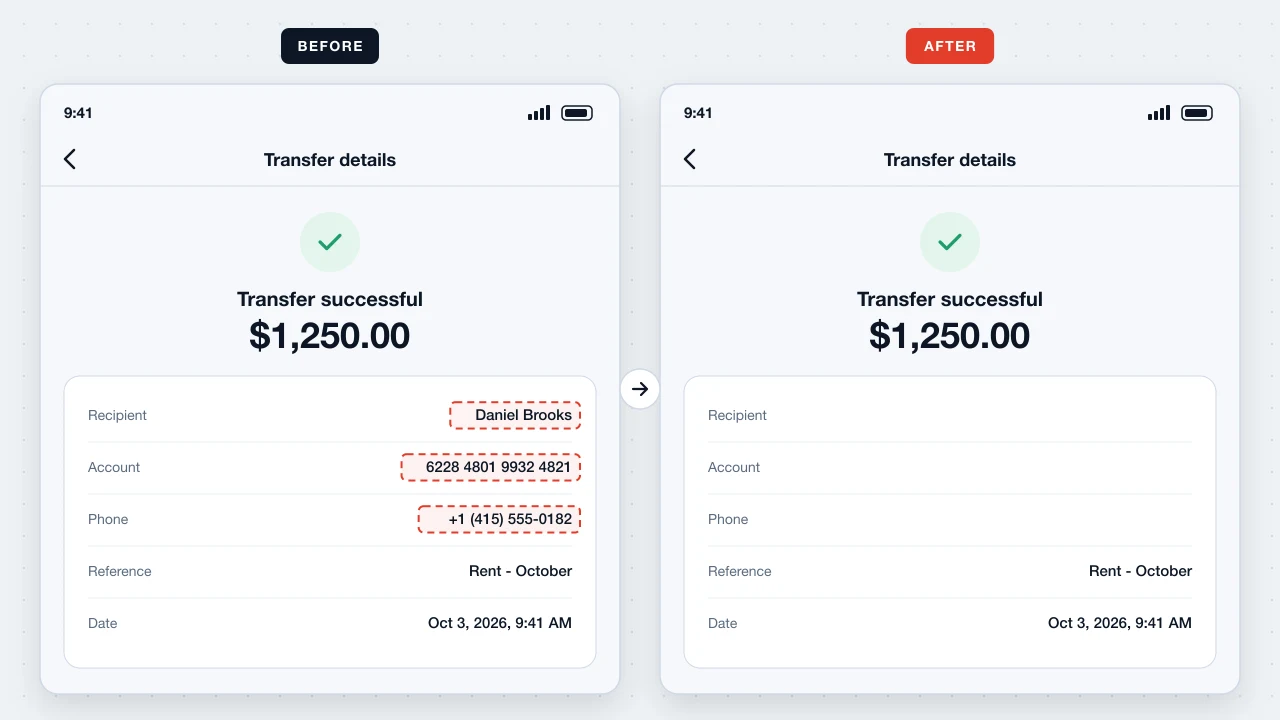
Remove personal information

Erase phone numbers, addresses, account IDs, and balances before sharing chats or statements.

Erase text from screenshot use case: Remove personal information
Scenario 02

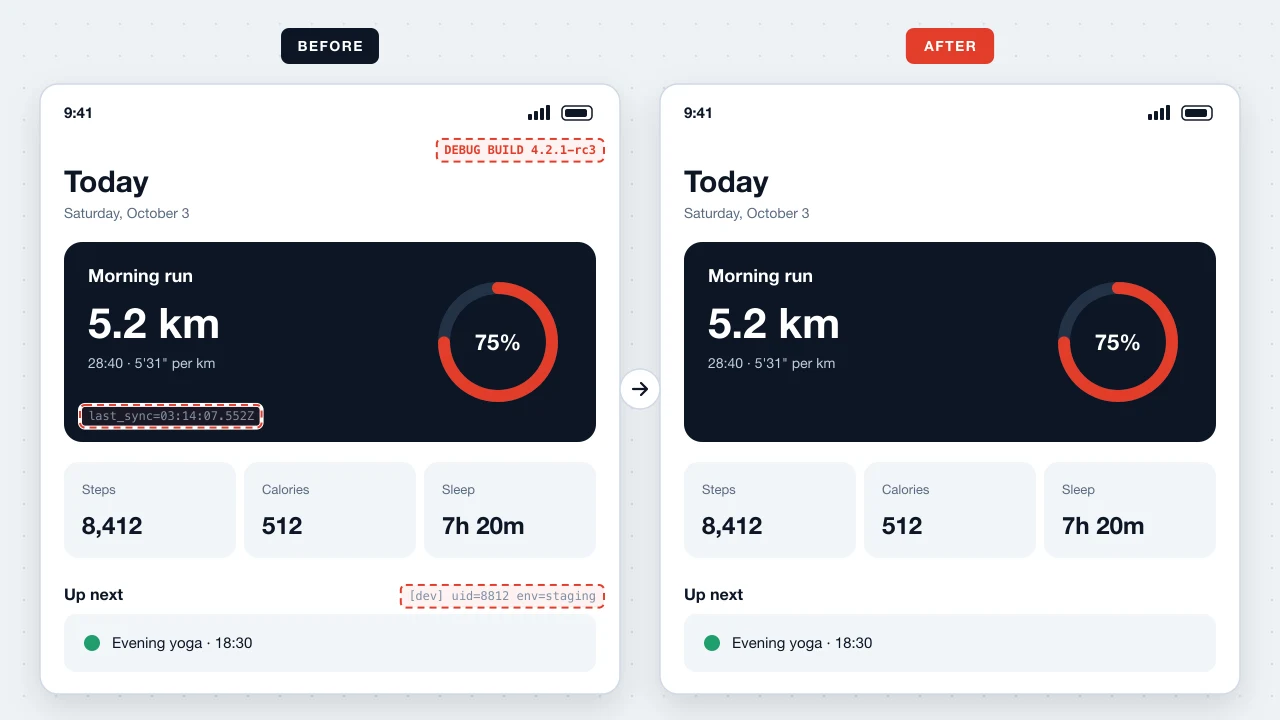
Clean marketing visuals

Erase debug labels, timestamps, or notifications from UI captures used in ads and landing pages.

Erase text from screenshot use case: Clean marketing visuals
Scenario 03

Prepare templates

Erase existing wording to turn a screenshot into a blank template you can annotate later.

Erase text from screenshot use case: Prepare templates
Privacy

Erase text from screenshot without uploading it

Erase Text From Screenshot runs on the same local engine as Screenshot Editor. OCR and erasing happen on your device, so sensitive screenshots are never sent to us or anyone else.

FAQ

Erase Text From Screenshot FAQ

01How do I erase text from a screenshot?+

Upload the screenshot, select the words, pick an erase mode, clear the input, and apply. Then download the PNG.

02Which erase mode should I use?+

Sample color for flat, solid backgrounds; Smart fill for gradients or subtle textures; Brush repair when you need to paint over an exact area.

03Is erasing better than blurring?+

For privacy, yes. Erasing removes the letters entirely, while blurred text can sometimes be partially reconstructed.

04Is Erase Text From Screenshot free?+

Yes. No account, no limits, no watermark.

05Are my screenshots uploaded?+

No. OCR and erasing run locally in your browser.

06Can I undo an erase?+

Yes. Use Undo or ⌘Z / Ctrl+Z to restore recent edits.

07Does it work on busy photo backgrounds?+

It works best on UI, documents, and simple backgrounds. Complex photos may need Brush repair for a cleaner result.

Ready to erase

Erase text from your screenshot now

Wipe unwanted words cleanly in your browser — free, private, no account.

Start erasing screenshot text