
Sample color — for paper and flat fills
Worksheets, diagrams, and cards usually have an even background. Sample color reads the surrounding tone and fills the letters with it, leaving no smudge.
Online text eraser
Erase text from image files the way you'd use an eraser on paper — only cleaner. Wipe labels off diagrams, answers off worksheets, names off cards, and titles off photos with Sample color, Smart fill, or a hand brush — all on your own device.
Pick the image to erase text from
Worksheets, diagrams, cards, photos — PNG or JPG
Choose the language of the text you want to erase
A scanned worksheet, a diagram from your notes, a greeting card, or a photo — PNG and JPG both work.
Tap the words or drag over a group of labels. In Text Style choose Sample color for paper, Smart fill for photos, or Brush repair for handwriting.
Apply with an empty input. Zoom in to check the edges, undo if needed, and save the cleaned image.

Erase Text From Image is an online text eraser with more than one tip. Instead of painting a white box over the words, it removes them and rebuilds what's underneath, using the method that suits the background.
Worksheets, diagrams, and cards usually have an even background. Sample color reads the surrounding tone and fills the letters with it, leaving no smudge.
When text sits on wood grain, food, or a gradient, Smart fill reconstructs the texture from nearby pixels instead of using one flat color.
Pen strokes that drift outside the detected box, or loopy handwriting OCR can't read, can simply be painted over by hand.
Drag across several labels and erase them in one pass — handy for diagrams with five or more callouts.
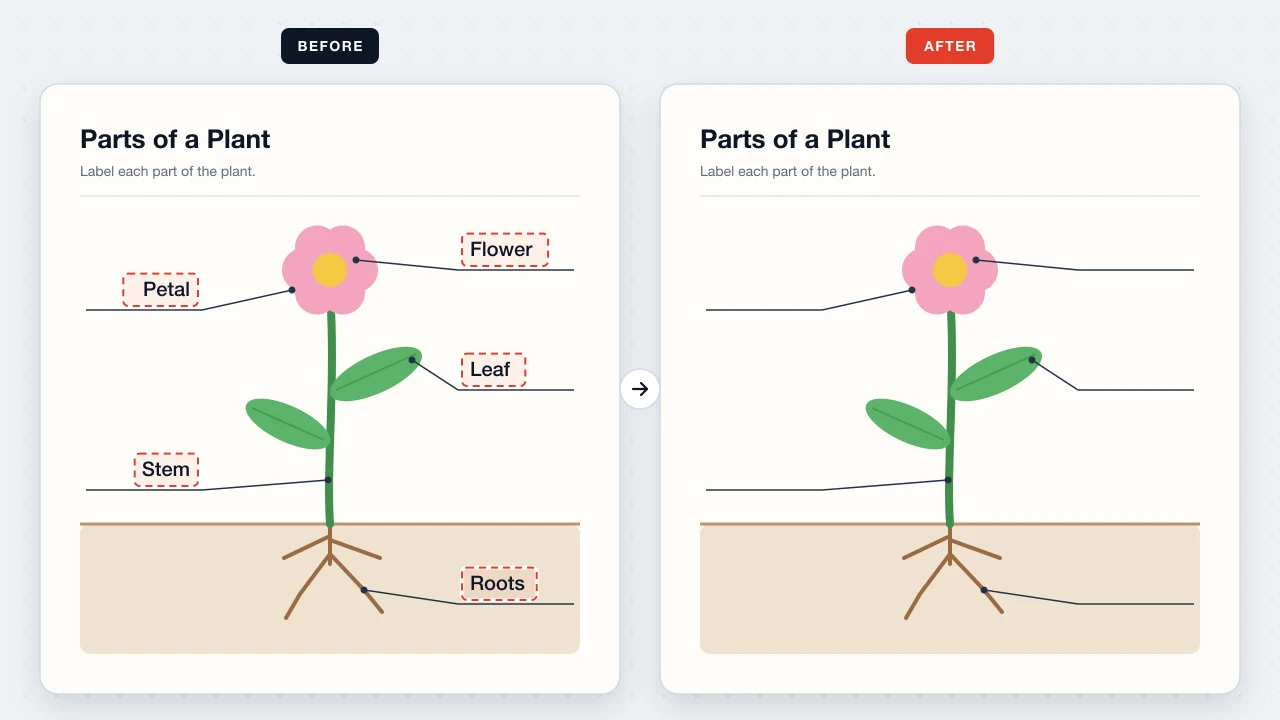
Only the selected words are erased, so arrows, leader lines, and blanks remain for students to fill in.
Neat handwriting is often detected; anything else can be wiped with the brush.
Pinch or use the zoom buttons to check the erased edges before you save.
Every erase can be reversed with the Undo button or ⌘Z / Ctrl+Z.
Save a full-resolution PNG, ready to print or share, with no watermark.
Erase “Flower”, “Leaf”, “Stem”, and “Roots” from a plant diagram and keep the leader lines, so students write the labels themselves.
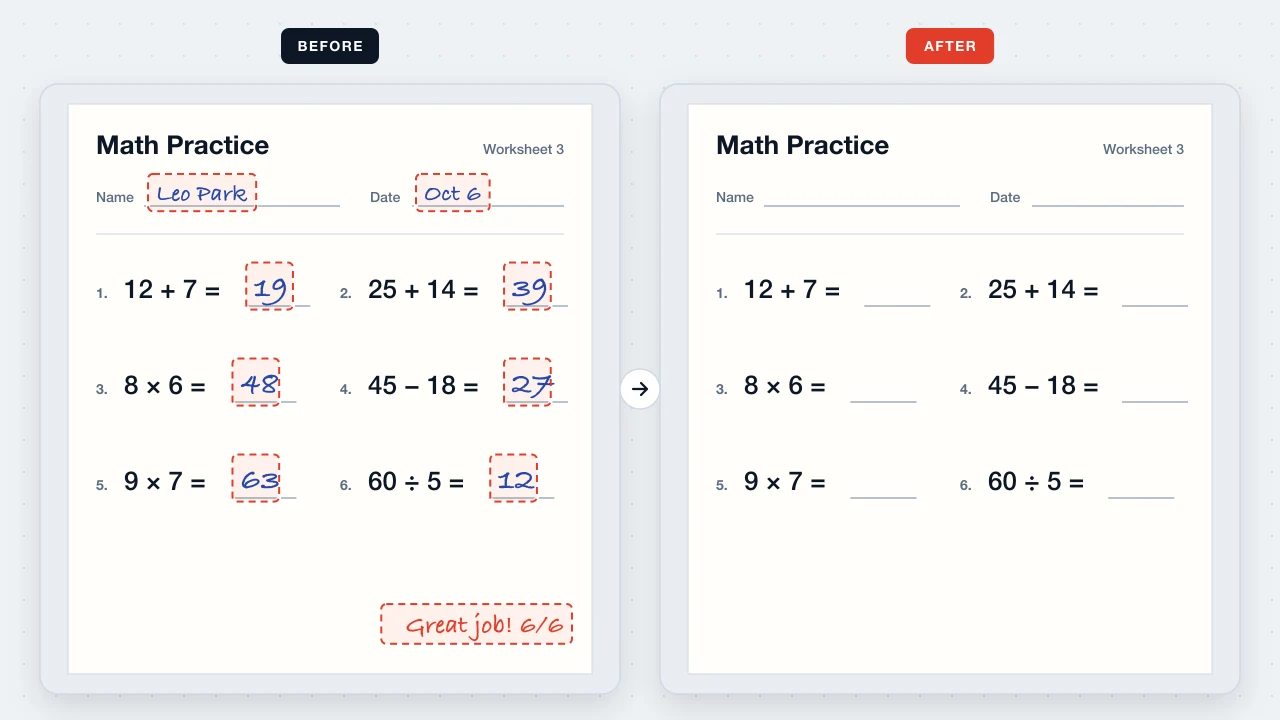
Erase the handwritten answers, the student's name, and the teacher's note to print a fresh copy of the worksheet.
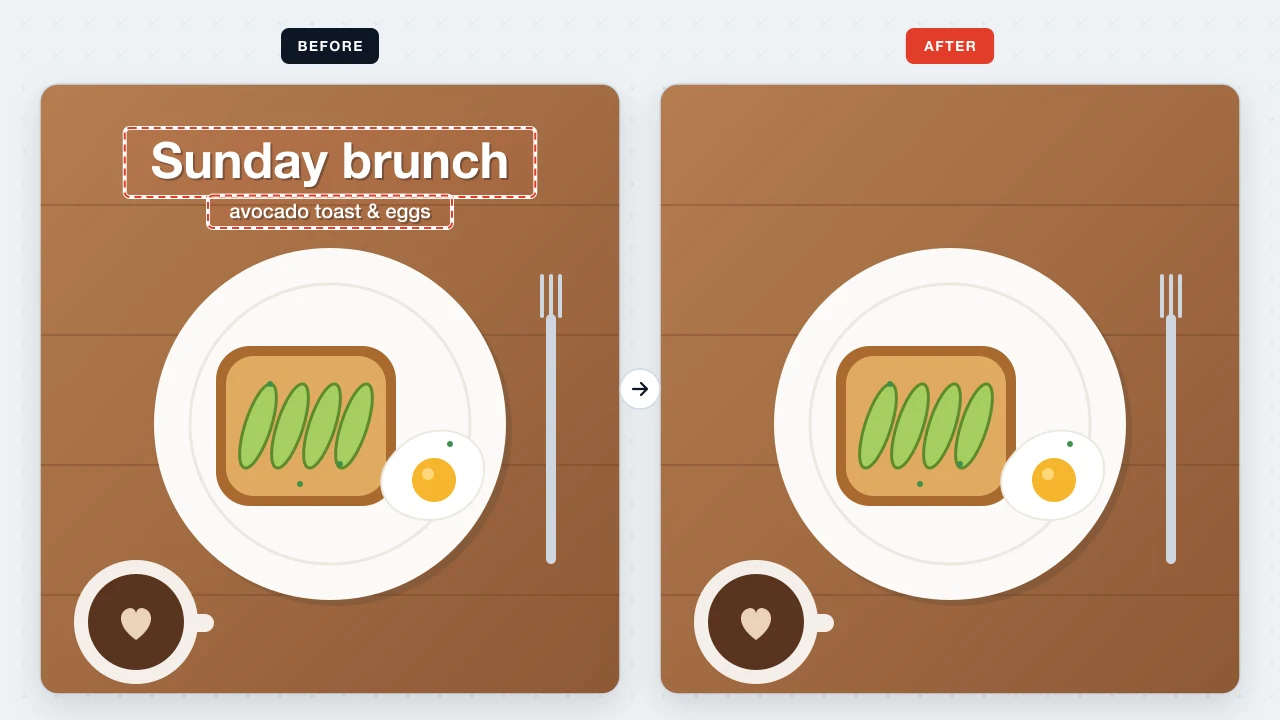
Erase overlay text like “Sunday brunch” from your own photo so the picture works for a new post or menu.
Worksheets carry children's names; cards carry family messages. Erase Text From Image handles them only inside your browser — no upload, no cloud storage, and no account tying the images to you.
Open the picture, select the words, choose an erase mode in Text Style, leave the input empty, and apply. Then save the PNG.
Sample color. Paper is close to a single tone, so filling with the surrounding color gives the cleanest result.
Clear handwriting is often detected automatically. If it isn't, switch to Brush repair and paint over the pen strokes.
No. Only the selected text regions are erased; leader lines and arrows outside them stay in place.
Yes. Press Undo or ⌘Z / Ctrl+Z to restore the previous state, then try a smaller selection.
No. Saving is free and needs no sign-up.
Clean up worksheets, diagrams, cards, and photos in a couple of taps — free and right in your browser.
Erase image text