Edit text in screenshot

Edit text in screenshot — free online OCR editor

Edit text in screenshot files right in your browser. Local OCR detects every word, so you can erase it or type new wording in seconds — your screenshot is never uploaded. Free, no sign-up, no watermark.

Upload a screenshot

Open Photos and pick it from your Screenshots album.

Default English — switch if your screenshot uses another language

Take a screenshotiPhoneSideVolume UpAndroidPowerVolume Down
How it works

How to edit text in a screenshot in 3 steps

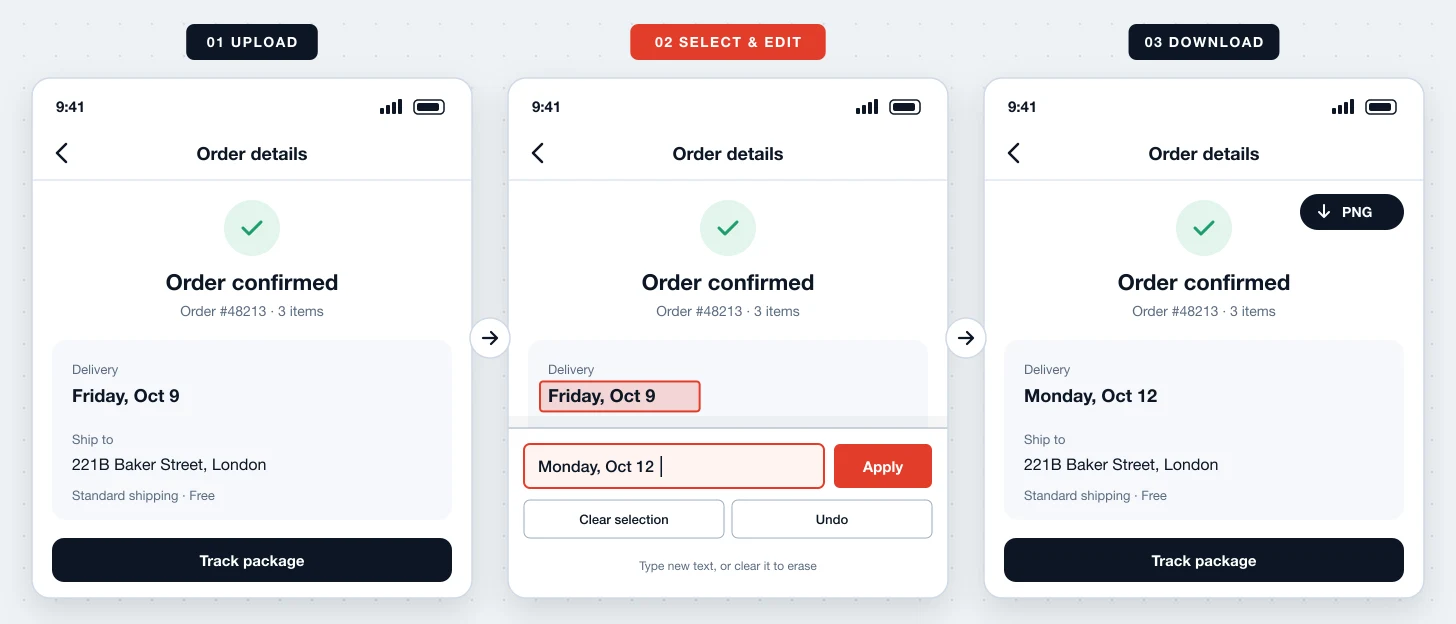
  1. 01

    Upload the screenshot

    Drop in a PNG or JPG capture from your phone or computer. On desktop the editor opens in a full-screen workspace so you have room to work.

  2. 02

    Select the words to edit

    Local OCR maps the text word by word. Tap a word, or drag across a line to select several at once — no manual box drawing required.

  3. 03

    Erase or rewrite, then download

    Clear the field to erase, or type new text and apply. Undo if you change your mind, then download the edited screenshot as PNG.

Edit text in screenshot demo: upload, select words, edit, download
About the tool

What is Edit Text In Screenshot?

Edit Text In Screenshot is a free browser-based editor for changing the words inside a screen capture. It combines on-device OCR with erase and replace tools, so you can fix, hide, or update text without Photoshop or a design file.

One editor for every screenshot text task

Most tools only blur or only crop. Here you can erase a word with smart background fill, replace it with new text, or combine both across several regions of the same screenshot — then export a single clean PNG.
Built for real screenshots

App UIs, chat threads, dashboards, emails, and web pages all have small, dense text. Word-level OCR, pinch-to-zoom on mobile, and a fit-to-screen workspace on desktop make those details easy to select.

Private by default

OCR and editing run with WebAssembly and Canvas inside your browser tab. Nothing is sent to a server, and the image is gone from memory as soon as you refresh or close the page.

Why us

Why edit text in screenshot here

01

Word-level OCR selection

Every detected word is selectable. Tap one word or drag across a phrase instead of drawing boxes by hand.

02

Erase and replace in one place

Leave the field empty to erase, or type to replace. Switch between both on different words in the same screenshot.

03

Undo recent edits

Step back through your last edits with the Undo button or ⌘Z / Ctrl+Z if a result is not quite right.

04

Full-screen desktop workspace

On larger screens the screenshot fits the whole viewport, with editing controls in a side panel.

05

Multi-language OCR

English by default, plus Simplified and Traditional Chinese, Japanese, Korean, Spanish, French, German, and Russian.

06

Free PNG export

Download at the original resolution with no watermark, no account, and no usage limit.

Use cases

When to edit text in a screenshot

Scenario 01

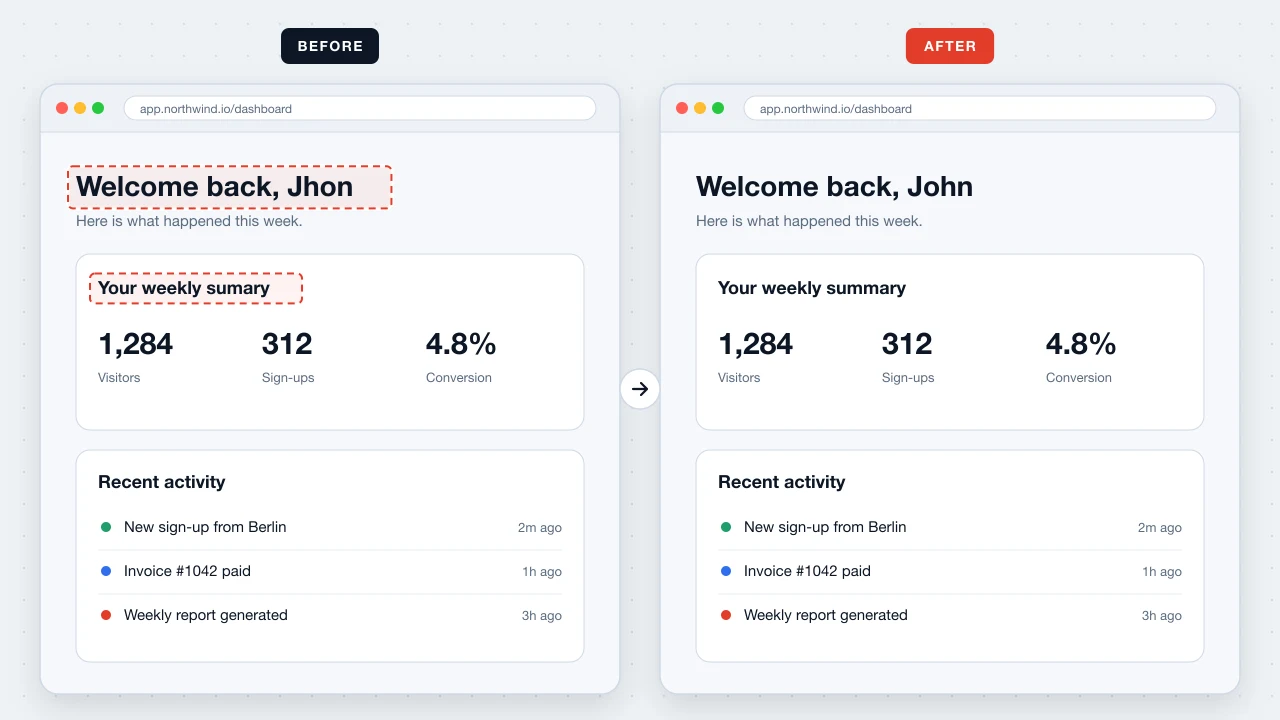
Fix typos in app and web captures

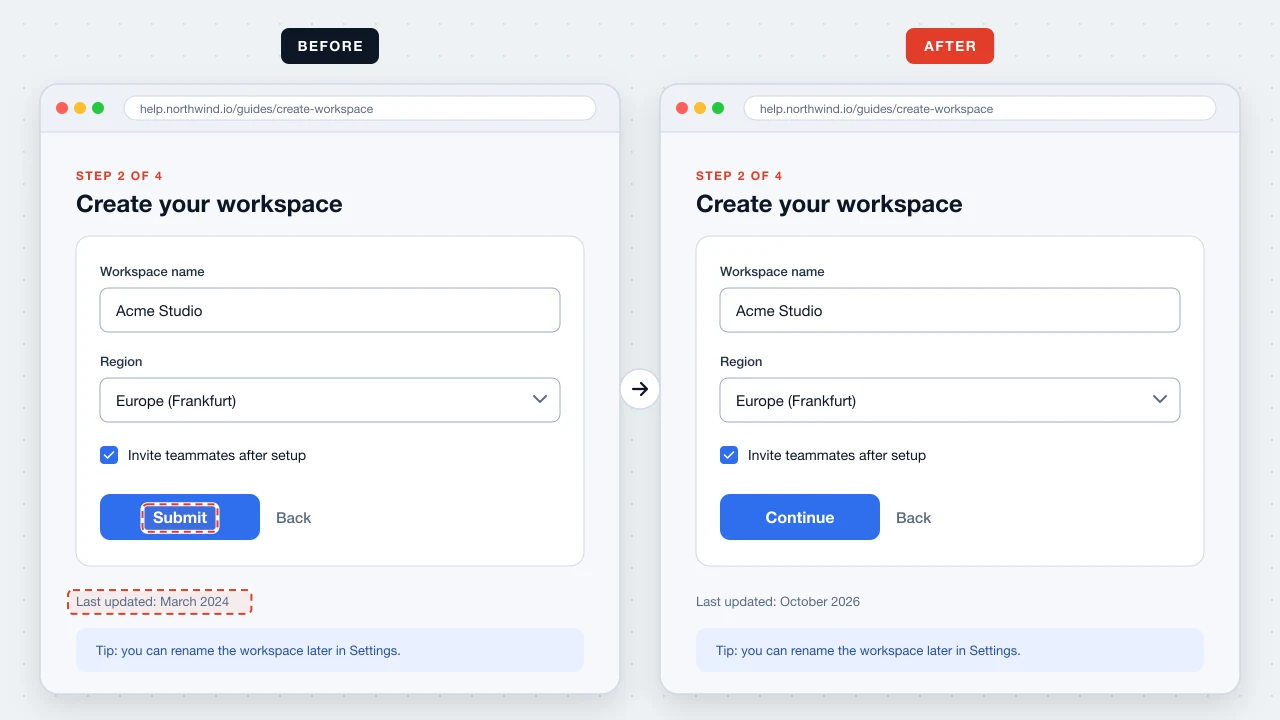
Spotted a typo in a screenshot for docs or a pitch deck? Edit text in screenshot instead of re-staging the whole screen.

Edit text in screenshot use case: Fix typos in app and web captures
Scenario 02

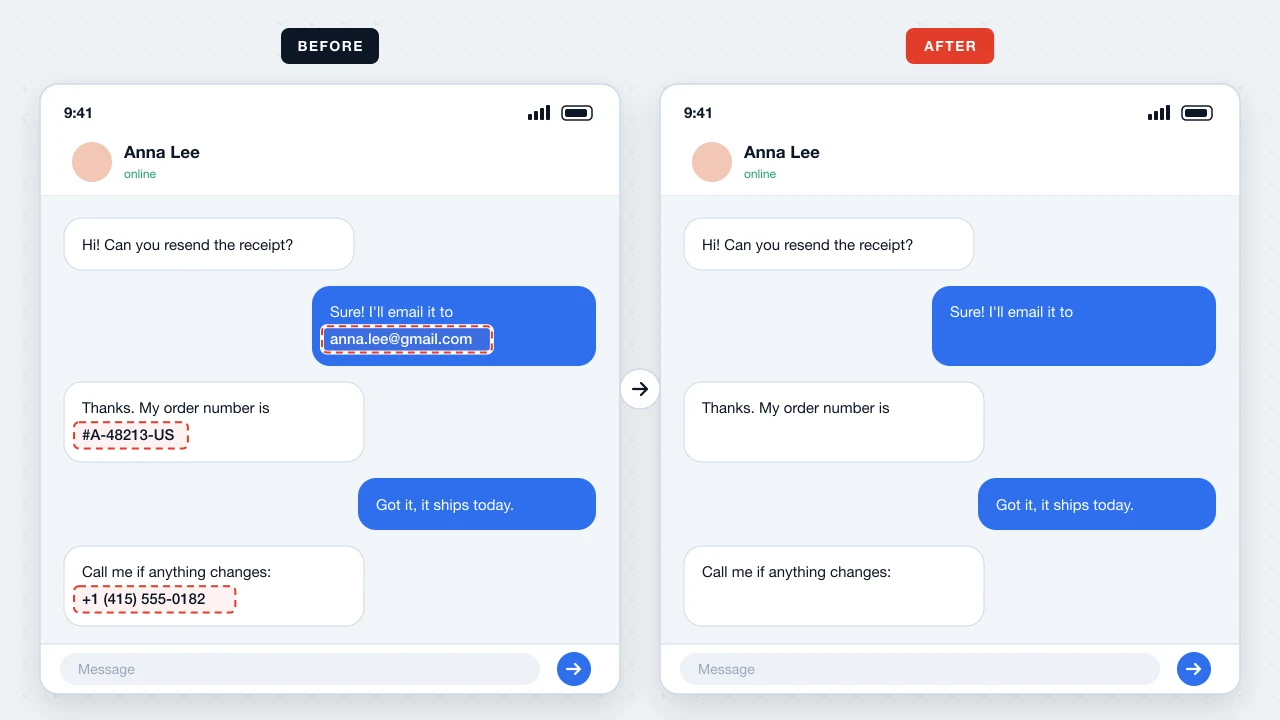
Clean up before sharing

Erase names, emails, order numbers, or balances from chats and dashboards before posting them publicly.

Edit text in screenshot use case: Clean up before sharing
Scenario 03

Refresh tutorial screenshots

Update a label, date, or button caption so older tutorial images match the current product.

Edit text in screenshot use case: Refresh tutorial screenshots
Privacy

Edit text in screenshot without uploading it

Edit Text In Screenshot runs on the same local engine as Screenshot Editor. OCR, erasing, and text rendering happen on your device. We never receive, see, or store your screenshot.

FAQ

Edit Text In Screenshot FAQ

01How do I edit text in a screenshot online?+

Upload the screenshot, wait a few seconds for OCR, tap or drag over the words, then erase them or type new text and apply. Download the PNG when you are done.

02Is Edit Text In Screenshot free?+

Yes. It is free with no account, no usage limit, and no watermark.

03Is my screenshot uploaded to a server?+

No. Everything runs locally in your browser. The image stays in memory only and is cleared when you refresh or close the page.

04Can I edit text in a screenshot on iPhone or Android?+

Yes. Open the page in Safari or Chrome, upload from Photos, zoom in if the text is small, and save the PNG after editing.

05Can I undo an edit?+

Yes. Use the Undo button or ⌘Z / Ctrl+Z to step back through your most recent edits.

06What if OCR misses some text?+

Try a sharper, full-resolution screenshot, choose the correct OCR language, or zoom in before selecting. Very small or stylized text is harder to detect.

07Do I need to install anything?+

No. It works in any modern browser on desktop and mobile.

Ready to edit

Edit text in your screenshot now

Upload a capture and edit its text in your browser — free, private, no account.

Start editing screenshot text